
Stockity App Download: Trade on Android, iOS and PC
The Stockity app gives traders full access to the platform's core tools directly from a smartphone, tablet, or desktop. Whether you are new to financial markets or already have experience, this page explains what the app includes, how to download it on any device, and what to do after installation.
This guide is for anyone who wants to trade on the go – with no need to stay at a desktop. Below you will find clear installation instructions for Android, iOS, and Windows, as well as an overview of the app's key features and how to get started with a free demo account.
Trade on Stockity with bonus

Trade on Stockity online with bonus and explore a modern platform for digital options trading with fast execution, flexible strategies and convenient tools for beginners and experienced traders.
What Is the Stockity Mobile App
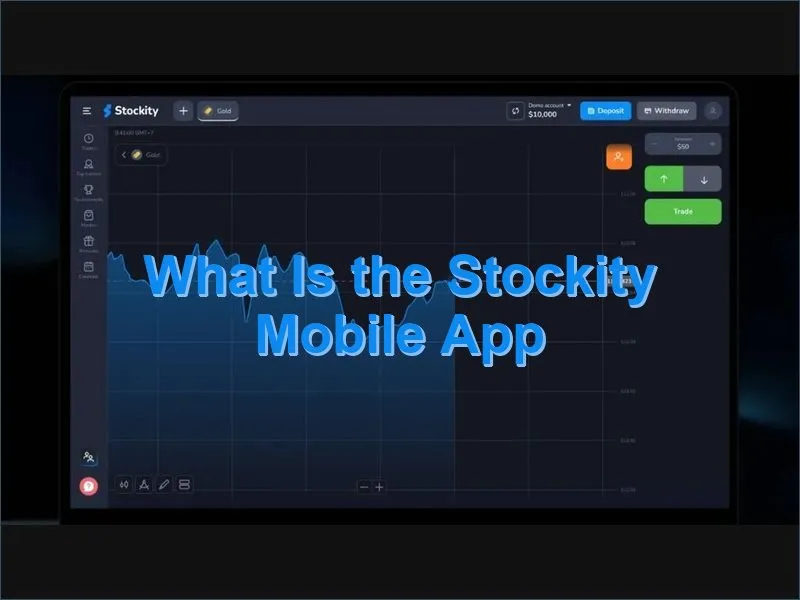
The Stockity app is a mobile-first trading platform that mirrors the functionality of the web terminal. It is designed to give users access to live market data, charting tools, and trade execution from any connected device – without compromising on performance or usability.
The app supports more than 70 tradable instruments, including currency pairs (EUR/USD, GBP/USD, USD/JPY), commodities such as gold, silver, and oil, major stock indices like S&P 500 and NASDAQ, individual company shares, and cryptocurrency indices. Fixed-time trades are available with expiration periods ranging from 5 seconds to 60 minutes, making the app suitable for both fast-paced and measured approaches.
Key figures at a glance:
| Minimum trade amount | $1 |
| Minimum deposit | $10 |
| Demo account balance | $10,000 virtual funds |
| Market access | 24 hours a day |
| Supported platforms | Android, iOS, Windows, macOS (browser) |
How to Download the Stockity App for Android
Android users can access the Stockity app through Google Play. If the app is unavailable in your region due to local store restrictions, an APK file can be downloaded directly from the official Stockity website. Both methods result in the same application with identical functionality.
Android Installation via Google Play
- Open Google Play Store on your Android device.
- Search for Stockity in the search field.
- Tap Install and grant the required permissions.
- Once installed, open the app and log in to your existing account or create a new one.
- Explore the interface using the built-in tutorial before placing your first trade.
Minimum Android version: 5.0 (Android 8.0 recommended for full performance). The app requires a stable internet connection for live data feeds.
Android APK Installation
If Google Play is unavailable in your country, the APK route is a straightforward alternative. Before installing, go to your device settings and enable Install from Unknown Sources – this is a standard Android security step for apps distributed outside the Play Store. Always verify that the APK file originates from the official Stockity domain before proceeding with installation.
- Visit the official Stockity website and navigate to the download section.
- Select the APK download option.
- Enable installation from unknown sources in your Android security settings.
- Open the downloaded file and complete the installation.
- Launch the app and sign in to your account.
How to Download the Stockity App for iOS
The Stockity app for iPhone and iPad is available on the App Store. It requires iOS 12.0 or later, which means it is compatible with iPhone 6s and all newer models. iPad users benefit from the additional screen space for chart analysis and monitoring multiple assets simultaneously.
- Open the App Store on your iPhone or iPad.
- Search for Stockity and verify the developer name is Stockity Mobile.
- Tap Get to begin the download.
- Authenticate using Face ID, Touch ID, or your Apple ID password.
- Once the app installs, open it and log in or register.
- Configure push notifications to receive market alerts.
The iOS version includes Apple-native security features such as Face ID and Touch ID for fast login, iCloud sync for cross-device consistency, push notifications for price alerts, and a home screen widget for monitoring selected assets without opening the app.
Stockity App for Windows PC and Mac
Desktop users do not need to install a separate program on macOS – the platform runs fully in any modern browser, preserving all core functionality including charting, account management, and trade execution.
For Windows, a standalone desktop application is available. Minimum requirements are Windows 10, 4 GB RAM, and a 2 GHz processor.
Windows Desktop Installation Steps
- Visit the official Stockity website and go to the download section.
- Click Download for Windows.
- Scan the installer with your antivirus before running it.
- Double-click the .exe file and follow the installation wizard.
- Accept the licence agreement and choose your installation folder.
- Once installed, open the app and log in or create your account.
- Enable two-factor authentication and automatic updates in the settings.
After setup, take a few minutes to arrange your dashboard, configure price alerts, and explore the demo environment before placing live trades.
App Features and Trading Tools
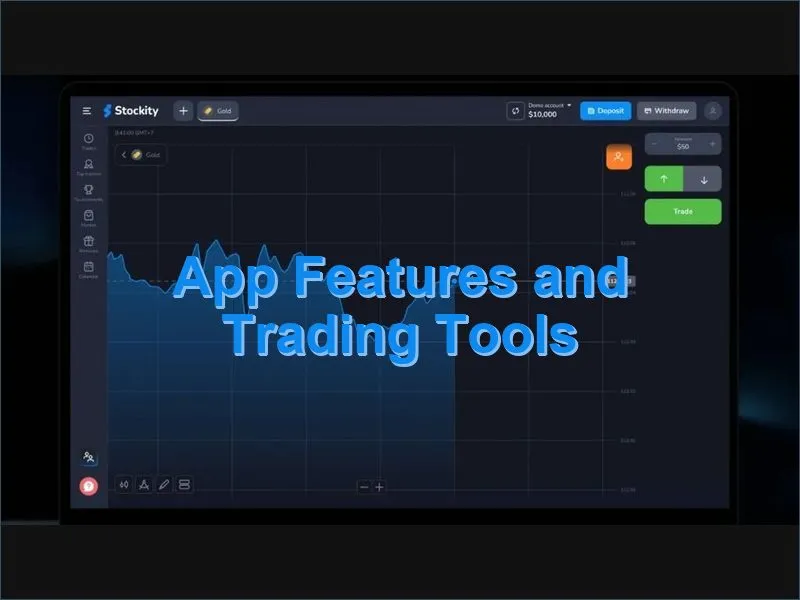
The Stockity app is built to provide a consistent experience regardless of the device used. The main trading screen shows the active asset's price chart alongside clearly labelled entry controls for upward and downward positions. Trade amounts are entered manually or adjusted with a slider, with a minimum of $1 per trade.
Available chart types include line, mountain, and candlestick formats across multiple timeframes. Technical analysis tools cover moving averages, RSI, Bollinger Bands, MACD oscillators, trend lines, support and resistance markers, and Fibonacci retracement levels – all accessible directly on mobile screens.
Feature Comparison: Mobile App vs Web Platform
| Feature | Mobile App | Web Platform |
| Live trading | ✓ | ✓ |
| Demo account | ✓ | ✓ |
| Deposits and withdrawals | ✓ | ✓ |
| Account verification | ✓ | ✓ |
| Technical analysis | Core indicators | Full set |
| Multi-asset monitoring | Basic view | Advanced layout |
| Tournament participation | ✓ | ✓ |
| Price alerts | Push notifications | In-platform alerts |
Payment Methods in the Mobile App
The app supports a range of deposit and withdrawal options, including Visa and Mastercard, bank transfers, selected e-wallets, and cryptocurrency payments including Binance Pay. The minimum deposit across all methods is $10. Withdrawal processing follows the same methods used for the initial deposit.
Users can switch between the demo and live account at any point using the account selector in the navigation bar. The demo account carries a $10,000 virtual balance and replicates all live trading conditions, making it a practical environment to learn the platform without financial risk.
Getting Started After Download
Once the app is installed and you have logged in, the recommended starting point is the demo account. This allows you to explore the interface, test how different assets behave, and practise trade execution before committing real funds.
After spending time on the demo, the next steps are straightforward:
- Enable two-factor authentication in your account security settings.
- Fund your account using a preferred payment method – minimum $10.
- Set price alerts for the assets you plan to follow.
- Review your trading activity and results regularly from the statistics section.
- Use the built-in educational resources to develop your approach over time.
If you do not yet have an account, registration takes only a few minutes. You can also explore the platform first with a free demo account before making any financial commitment.
Security and Cross-Device Reliability
The app applies SSL encryption to all data in transit and supports two-factor authentication for account access. On iOS, Face ID and Touch ID provide an additional layer of identity verification. On Android, device lock settings and session management options help protect your account between sessions.
Cross-device synchronisation keeps your account state, open positions, and settings consistent across all platforms. You can begin a session on a desktop and continue on your phone without any disruption to your workflow. To keep the account secure regardless of device, it is advisable to avoid trading over public Wi-Fi, keep the app updated, and log out after each session on shared devices.
For any questions about the platform or your account, the Stockity support team is available 24 hours a day through the in-app chat and the main website. You can also review platform details and user experiences in the reviews section.
Risk notice: Online trading carries a high level of risk and may not be suitable for all users. Only trade with funds you can afford to lose. Consider seeking independent financial advice before using the platform.